WinNative Emulator is designed to play desktop games on mobile. It is a PC game emulator for Android. WinNative is a powerful emulator built by combining the top features of Winlator Bionic and Pluvia. It connects game libraries from platforms such as Steam, Epic Games, and GOG.
What is WinNative Emulator?
WinNative is a free and open-source Android app that allows users to play PC games from Steam, Epic Games Store, GOG on Mobile. It allows you to add your own offline PC games using their executable files. The emulator includes a library where your added games are displayed, allowing you to manage and launch your games from one place.
| Feature | Details |
|---|---|
| Emulator Name | WinNative |
| Platform | Android |
| Game Support | PC Games & Retro Games |
| Game Stores | Steam, Epic Games, GOG |
| Graphics Drivers | Turnip, System & Custom GPU Drivers |
| Performance Options | Box64 & FEX Presets |
| Custom Games | Supports .exe Game Files |
| Source Code | Open Source |
| License | GPL-3.0 |
Features of WinNative
Win Native Emulator hass useful features, and easy-to-use interface, support for multiple gaming platforms. It is a community driven emulator, including bug fixes, driver updates, and UI improvements. Regular updates help improve performance, compatibility, and the overall gaming experience.
PC Gaming on Android
WinNative allows you to run supported Windows x86_64 games on Android. It brings a desktop-style Windows gaming environment to your Android device.
Games Integrations
It connect your Steam, Epic Games, and GOG libraries inside WinNative and manage your games from one place.
Custom Game Library
Using this emulator you can add your own Windows games directly to the WinNative library by selecting the game’s executable file. Your games can then be launched directly from the app.
Console Support
WinNative Emulator supports classic console games alongside Windows PC games, including NES, SNES, Game Boy, GBA, Genesis, Nintendo 64, PlayStation, PlayStation 2, and GameCube/Wii.
Background Session
Game sessions, component downloads, and ImageFS operations can continue running when the app is moved to the background or the screen is locked.
Frames
It supports frame generation using Lossless Scaling shaders, with 2×, 3× and 4× multipliers, adaptive targets and FPS limiting.
Graphics
DXVK, WineD3D, and native Vulkan, providing flexibility across different games and configurations.
Wine & Proton Support
It uses Wine and Proton-based components to provide compatibility with Windows games on Android, with different versions available for different games and configurations.
Gamepad Support
Its controller allows users to navigate the application and control games using a connected gamepad. Also support save and load states, allowing you to save your progress and continue from the same point later.
Cloud Save Support
Supported game stores can use cloud saves, allowing compatible game progress to be synchronized through the respective platform.
Retro games can be played using touchscreen controls or physical gamepads, with additional options such as reset, fast-forward, and save/load states.
Download and Setup
To Download WinNative Emulator go to the download page. You will see different versions of WinNative available. download Your suitable version and After downloading, open the app. You’ll need to grant all file access so the emulator can read your game files. Once that’s done, Click Install System Files.
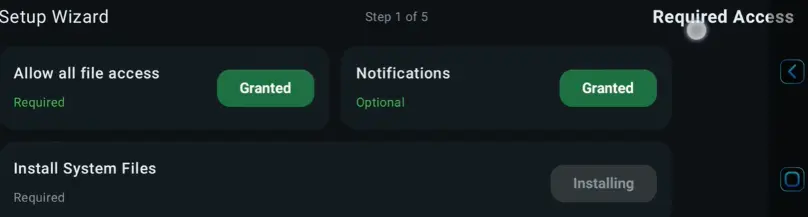
This takes a moment to unpack the core components needed to run the environment.
Recommended Components
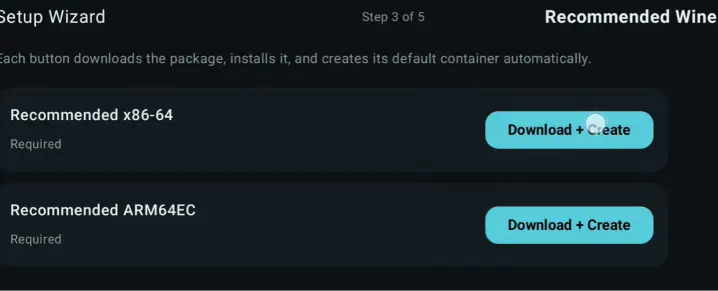
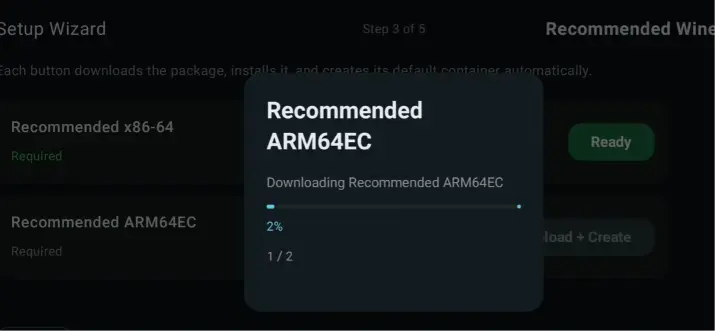
To Download Recommended components you should have internet access. Recommended components are the XVK, Box64, and the rest. Click to download and create both the X86_64 and ARM64EC packages.
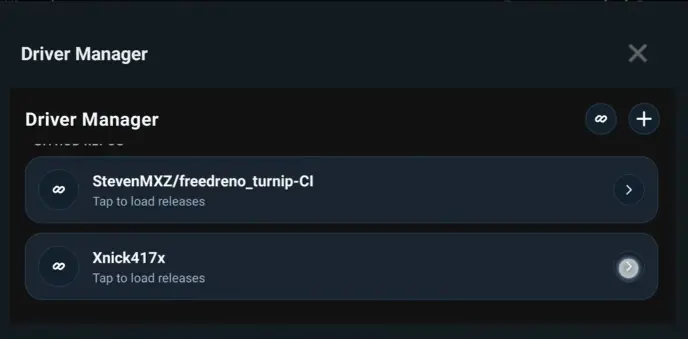
after downloading components, Go to the driver manager. For those of you on Adreno GPUs, and Select your supported Turnip version then click to download and create. This is the good for stability and speed.
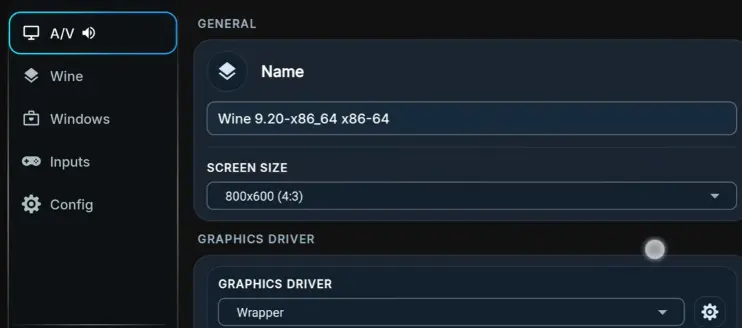
In the advanced tab, make sure your screen size is selected. recommended size is 1280 by 720 for maximum quality and frames per second. For the graphics driver configuration, select max device memory to 4096 MB. For the DX wrapper, you can choose anything you want. Also, make sure you select Show FPS in the X Server settings.
This will allow you to see your frames per second in real time.
Wine Settings
Now let’s go into the Wine tab and select your Box64 or FEX version and preset. You can also customize these presets. Just go to the presets tab and you’ll find both Box64 and FEX presets there. Simply copy an existing preset and tweak it based on the game you’re running.
For the config, you can select your processor cores, add environmental variables, and manage all drivers. After all of this, set presets according to your device. Your Wine is ready to go for playing games.
Add a Custom Game
Final step is Add Custom Game and select executable.exe. Select a specific folder where your game is extracted.
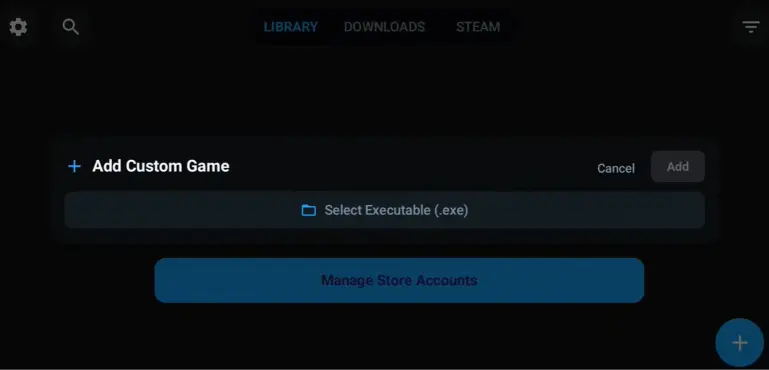
Note: Importing games directly from the download folder doesn’t work. You need to move your game files to the main device folder before importing them.
Troubleshooting & Support
WinNative Emulator is new, if you face any issue you can share with community. For feedback or share any issue you also contact us.